▶ Introduction to Managing Your Website
- Overview
- How to navigate the dashboard & website
- Managing Products
- Managing Product Categories
- Main settings
- Checkout settings
- Delivery options
- Managing orders
- Taking a manual order
- Alerts
- Managing users
- Managing Customers
▶ Bloomkeeper
▶ Design & Layout, Navigation & Templates
- Overview
-
- Templates Overview
- Main Template
- Product Main Template
- Product Small
- Mail Template
- Members Login
- Members Menu
- Cart Summary
- Order Summary
- Invoice
- Last View Product
- Contact Form
- Webpage Widgets
- Blog Templates
- Blog Small
- Blog Large
- Blog Template Top
- Card Printing Template
- Blog Bottom
- Extra Order Template
- Template History & Rollbacks
- Image library
- File library
- Folders (virtual)
- Editable areas
- Fonts
- Master email template
- Inserting the Delivery list Into site
- Using Plain text Editor
▶ Managing Your Products
- Overview
- Add a product
- Edit a product
- Deleting a product
- Renaming the product name
- Deleting product image
- Adding extra product images
- Adding sale price to product
- Product sorting (out of stock)
- Colour options
- Sorting Products Order on the page
- Product Sales Report
- Product inventory
- Product subscription
- Free Delivery Product
▶ Manage Orders, Workflow & Notifications
- Overview
- Managing orders and basic workflow
- Searching for orders
- Failed transactions
- Discarded orders
- User Tracking & Understanding error mesages on the checkout
- Refund orders
- Charge again
- Edit orders
- Resend tax invoice
- Order notes
- Taking order photos
- Delivery Run Sheet
- In Store Pickup Run Sheet
▶ Managing Delivery Costs & Locations
- Overview
- Adding delivery suburbs/postcodes
- Importing & Exporting Suburbs / Postcode Lists and Costs
- Marking certain suburbs not available same day/block days of week
- Enabling the dropdown list of the suburb for customers
-
- Block dates
- Adding Multiple Block dates
- Allow In Store Pickup blocking delivery
- Category restrictions for Mother`s Day, Valentine`s Day etc.
- Block all Saturdays and Sundays
- Suburb Block Dates
- Suburb Ordering Options & Visibility
- Reset Block Dates
- Weekend Prior Day Cut-off delivery
- Not Available Same-day
- Same Day Cut-Off for Suburb
- Delivery Address Autocomplete with Google
▾ Checkout Configuration
- Overview
- Same-day cutoff for in-store pickup time options
- Minimum order value
- Purchase order field
- Custom text on checkout
- Join now in checkout and members levels
- Numeric phone
- Google auto address completion
- Authority to leave and label
- Checkout customisations
- Privacy and legal settings
- Alcohol sales
- In Store Pickup
- AI Agentic Checkout
▶ Sales & Performance Tracking
- Overview
- Ecommerce dashboard
- Product sales
- Customer Dashboard
- Top ten customers
- Outstanding credit notes
- Integration with Google Analytics
- Integration with Facebook Pixel & Meta Tracking
- Third Party Tracking
- Delivery Date Forward Ordering
▶ Marketing
- Overview
- Members joining emails
- Cart abandonment emails
- Favicon
- Social media sharing images
- Same-day cutoff countdown timer
- Marketing Assistant
- AI Check & Product Feed Settings
▶ SEO & AEO
- Overview
- On-site SEO report and AI-generated metadata
- 404 manager and 301 redirects
- LLMS.txt
- Page caching
- Understanding Canonical Links
- Working with SEO AEO Team
▶ Managing Your Customers
- Overview
- Search customers
- Adding customer
- Unlocking customers Blocked Login
- Identifying member VS customers
- Managing account customers
- Manual Order with existing Customer
▶ Accepting Payment
- Overview
- Setup & Manage eWay
- Setup & Manage Afterpay
- Activate ApplePay and Google Wallet
- Credit Card Surcharges
- Updated Afterpay Marketing Changes
▶ Workshops
▶ Manual Orders
- Overview
- Account payments
- In-store payments
- Online payments
- Manual Order with existing Customer
- Creating a Generic Product Order
- Overwriting the Delivery Cost
▶ Gift Vouchers
- Overview
- Setting up gift vouchers
- Email templates
- Fulfilling gift vouchers
- Adding gift vouchers to site
- Gift Voucher Reporting
- Gift Voucher SMS Notifications
- Cancelling Gift Vouchers
▶ Account Customers
- Overview
- Managing accounts
- Invoicing Settings
- Account report
- Setting Account members level
- Automated Account Due Reminders
- Automated Invoice Statements
▶ Advanced Settings
- Overview
- Custom menus & Modules
- Workflow settings
- Manual order settings
- 404 Handler
- Credit card attempts & Automated Blocking
- Web Forms Spam Score Threshold
▶ Managing Your Store Information
- Overview
- Store Location and Phone Number
- Same-day cutoff
- Opening Hours
- In-store pickup locations
- Block Dates
- Adding ABN To Tax Invoice
- Adding Facebook and Instagram Links
▶ Managing Your Account
Delivery Address Autocomplete with Google
If you would like to use the Google Autocomplete for your delivery addresses you will need to set up a Google API Key. Depending on your usage Google may charge for the use.
Go to:
https://console.developers.google.com/apis
1) Create a new project
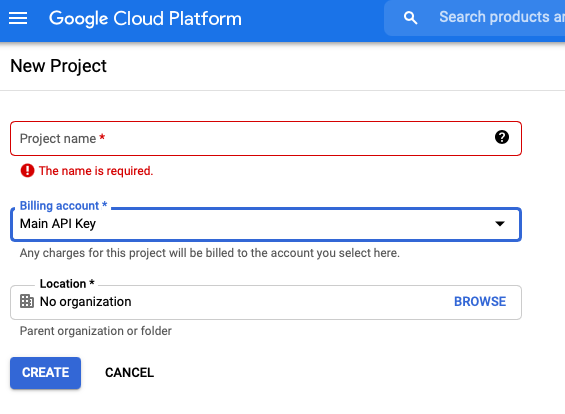
Enter the Project Name and click Create
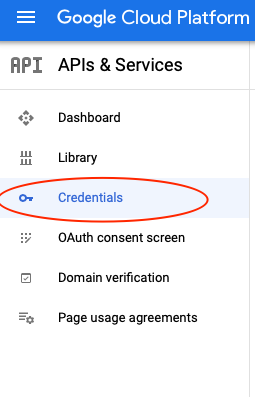
2) Click credentials in the side menu
3) Then click create credentials
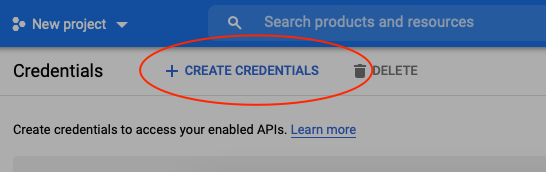
4) And choose API Key
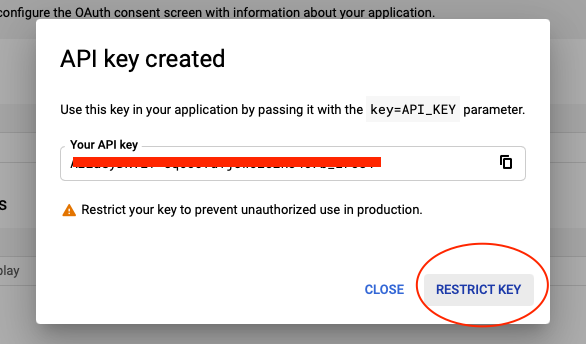
5) Click Restrict key
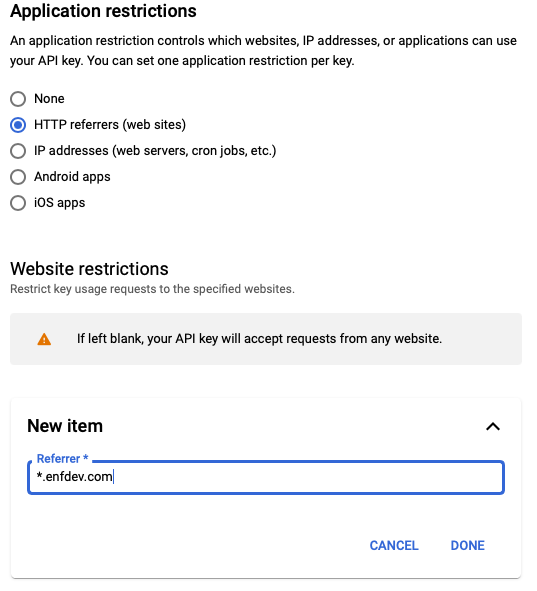
Choose https referrers
Then enter the domain name in the restricted domain:
*.yourdomainname.com/*
Click done
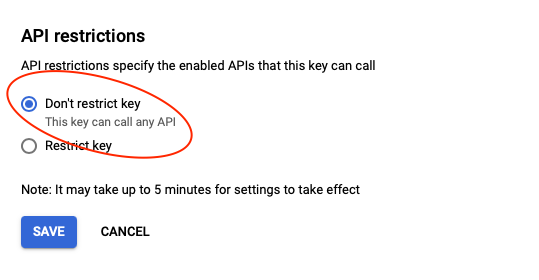
Choose dont restrict the key
Then click Save
6) Click Library in the side menu
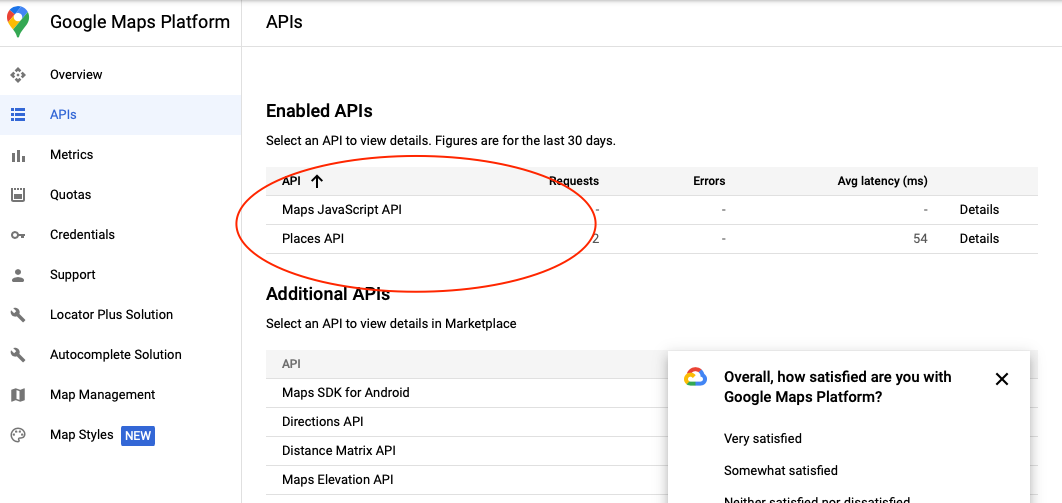
Search for Places API and enable
Search for Maps JavaScript API and enable
7) Wait ten minutes
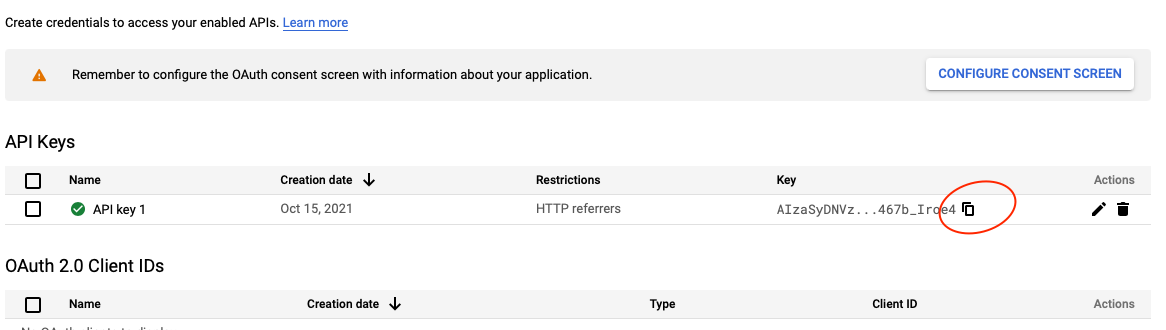
Copy your API Key, then go to Settings > Advanced Settings > Advanced Settings in your store and paste it into the Google API Key field. Update the settings to save.
Go to your website, add a product to the cart, and go to checkout to check that address autocomplete is working. This should happen instantly once you`ve saved the key.
If it`s not working, double check your settings are saved correctly. You may need to set up a Google billing account for the API key to be active.
Tips
- Autocomplete usually starts working straight away once the key is saved, so if it`s not showing up, check your settings first.
- Restricting your key to your own domain keeps it secure and stops other people from using it.
- Google may charge based on usage, so keep an eye on your billing account if you get a lot of orders.
Related articles
- Delivery Address Autocomplete with Google